
Minecraft Development Handbook
This handbook is an overview of resources available to the development team who wish to work on any of our Minecraft servers. Please read all the way through if you intend to develop any of our Minecraft servers.
Server Software
We manage our servers using Pterodactyl Panel.
We use Paper on our backend servers and Velocity on our proxies.
We use ExecutableItems and ExecutableBlocks for custom items and blocks; and use ExecutableEvents for event listeners.
We use MythicMobs for custom mobs on Enhanced SMP and Unboxed.
We use CMI for economy, custom commands, scheduled announcements and restarts, chat filter, teleportation, warps, holograms, and custom text.
We use DeluxeMenus to create custom GUI menus.
We use GriefDefender for any server that requires a simple claims system.
We also use Skript when no alternative presents itself.
We use other core plugins for various server functionality:
- ajQueue
- AxiomPaper
- ChatFilter
- Chunky
- Citizens
- CoreProtect
- DiscordSRV
- FastAsyncWorldEdit
- GSit
- HeadDatabase
- InteractiveChat
- LiteBans
- LuckPerms
- MapModCompanion
- PlaceholderAPI
- PlayerParticles
- ProtocolLib
- SCore
- Squaremap
- TAB
- Vault
- ViaBackwards
- ViaVersion
- SimpleVoicechat
- Vulcan Anticheat
- WorldGuard
Using Executable Plugins
The following is a brief tutorial for using “Executable plugins”: ExecutableItems, ExecutableBlocks, ExecutableEvents, CustomPiglinTrades, and SCore.
Each of these plugins has almost exactly the same command syntax, code structure, and GUI editor. Once you learn one, the others are learn.
The following commands can be used to interface with each plugin:
- ExecutableItems: /ei
- ExecutableBlocks: /eb
- ExecutableEvents: /ee
- CustomPiglinTrades: /cpt
- SCore: /score
All of these plugins have an in-game editor. In the editor, you can use a fairly intuitive inventory UI to create your items, blocks, events, or trades. Take the time to learn how to use the in-game editor, since this is the best way to make new, simple features.
Additionally, you can edit the plugin configuration files manually to create your items, blocks, events, or trades. Take the time to learn how to use the file editor, since this is the best way to edit complex features or copy existing features to make small changes.
You can find the configuration files here:
- ExecutableItems: /home/container/plugins/ExecutableItems/items/
- ExecutableBlocks: /home/container/plugins/ExecutableBlocks/blocks/
- ExecutableEvents: /home/container/plugins/ExecutableEvents/events/
You can also visit the Documentation for further information.
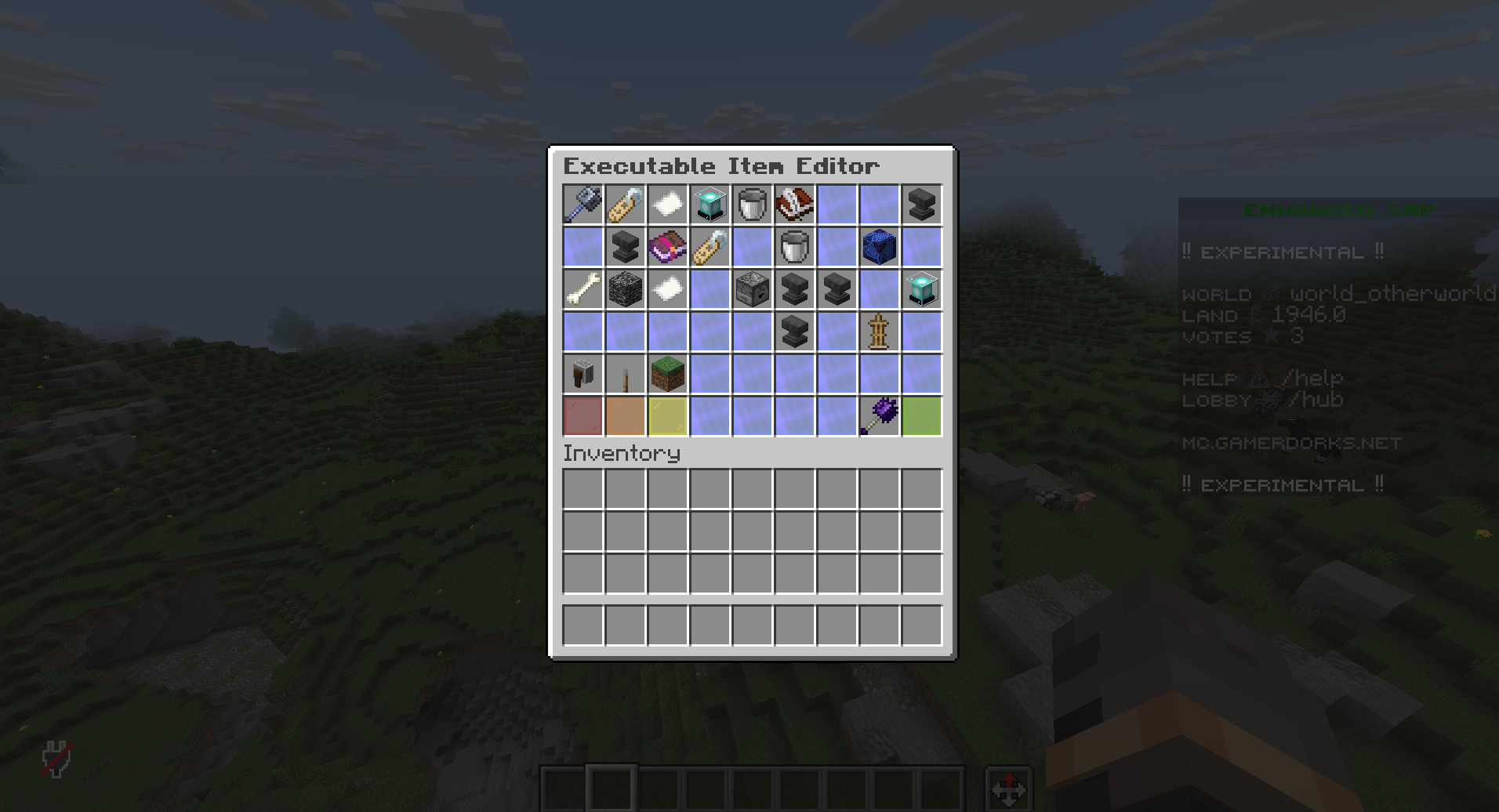
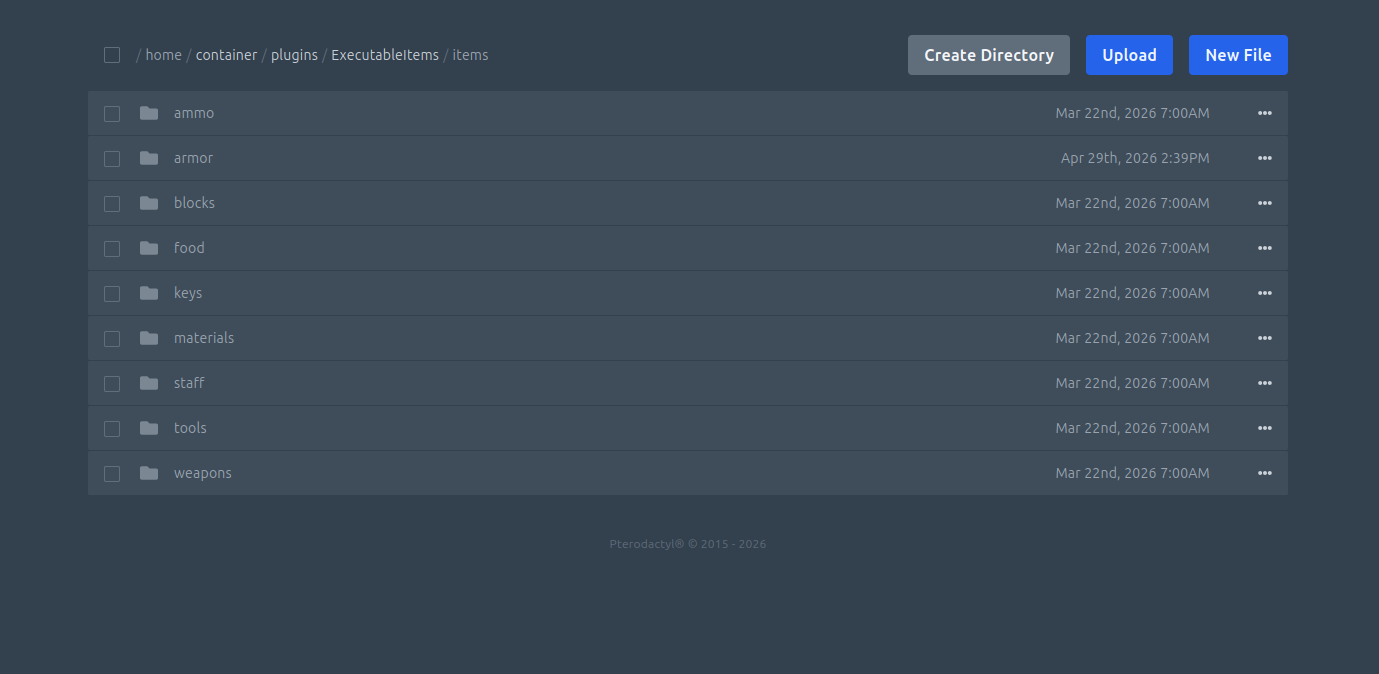
Example Custom Item
In ExecutableItems, the developer can create items which listen for events, check conditions, and then run a command if conditions are met. These event listeners are called Activators.
With ExecutableItems, you can create an Iron Sword, which listens for when you attack an entity with the sword in your mainhand. It checks if you are sneaking, and if this condition is met, then it cancels the event and heals the entity instead. This can be achieved by:
- Listening for the PLAYER_HIT_ENTITY activator.
- Enabling the ifSneaking: true player condition.
- Enabling the cancelEvent: true activator feature.
- Running the REGAIN_HEALTH 5 entity command.
You can create this item in the editor using /ei create <item-name>, and edit it using /ei editor and navigating to the item’s path.
You can also edit it further using by editing the configuration file, which you can find at /home/container/plugins/ExecutableItems/items/<item-name>.yml
After making an edit to the configuration files, run /ei reload in-game to refresh the configurations.
Then you can test your item by giving it to yourself with /ei give <player> <item-name>.
Visit these Documentation pages for more information:
The process for creating a block with EB, or an event with EE, is very similar. All Executable plugins use the exact same Activator system, and all the same commands.
Additional Executable Functionality
The SCore plugin can be used to create custom variables and custom projectiles.
The custom variables can be modified using the /score variables commands and can be accessed through placeholders at %score_variables_<variable-name>%. This makes them accessible in any plugin.
The custom projectiles can be only used in the Executable plugins, but can be defined with specific properties such as velocity, damage, knockback, visibility, and custom name. Using custom name, you can create an item which shoots multiple different types of projectile, which each trigger a different Activator on hit.
Visit these Documentation pages for more information:
Using MythicMobs
MythicMobs is used to create custom entities. This is useful for more than just mobs, but also for custom TNT, End Crystals, Evoker Fangs, or other nonliving entities.
In MythicMobs, the developer can set
- Mob type
- Mob disguise, useful for giving something the behavior of one mob but the appearance of another
- Mob attributes, such as
- Health
- Armor
- Damage
- Movement Speed
- AI Modules, which influence mob behavior and hostility
- Skills, which allow the mob to activate abilities.
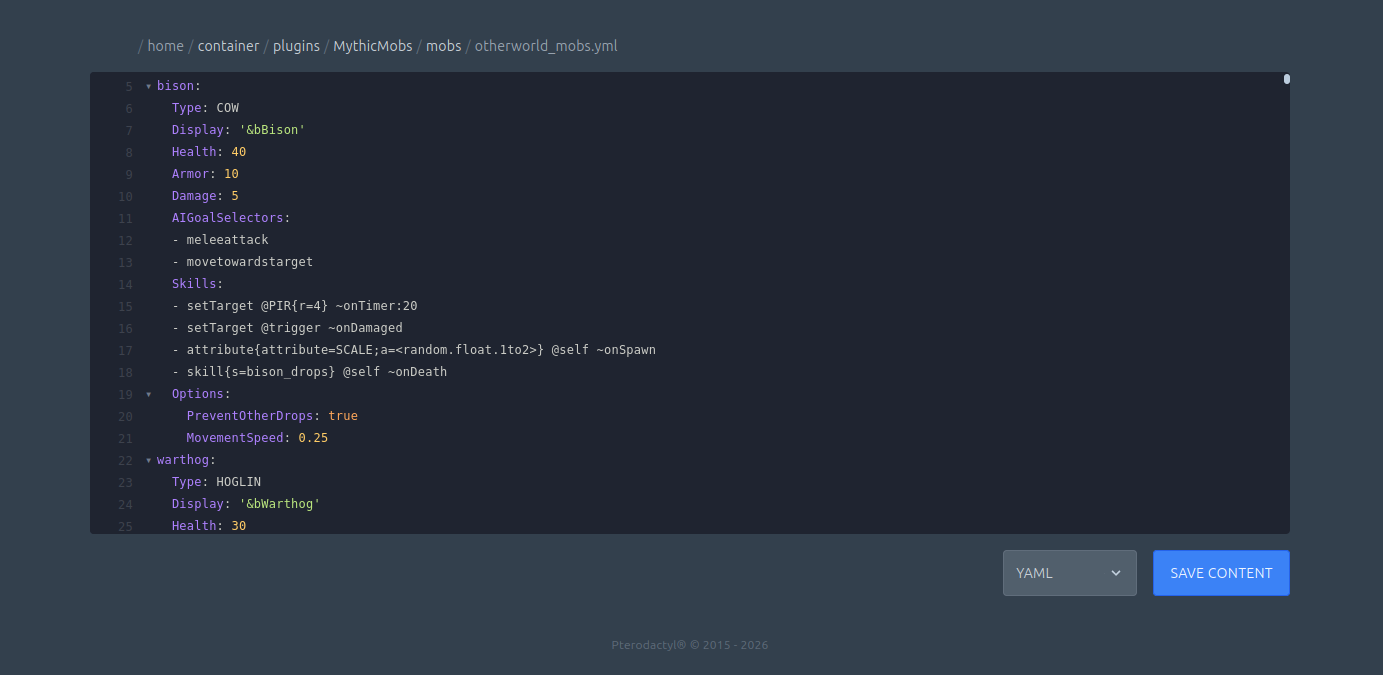
MythicMobs are edited entirely through the file system. The folder can be found at /home/container/plugins/MythicMobs/. Once you finish making an edit to the files, remember to reload configuration using /mm reload.
Visit these Documentation pages for more information:
You will need the documentation to work with MythicMobs. There is no way around it.
To help with your first few mobs, try looking at mobs that already exist in the server you’re working on. They can offer clues as to how the plugin operates.
Using CMI
CMI is used for a variety of features. The three most important are Custom Commands, Custom Text, and Schedules. These files can be found at the following locations:
- /home/container/plugins/CMI/CustomAlias/
- /home/container/plugins/CMI/CustomText/
- /home/container/plugins/CMI/Settings/Schedules.yml
The documentation for these can be found at the following locations:
Using DeluxeMenus
DeluxeMenus is used to create custom inventory GUIs, such as the one that opens automatically when players enter the Lobby.
Read the documentation for information about this plugin.